Audio Length (Advanced Guide)
See Extracting Game Audio & Creating Audio Mods before proceeding.
This is an Advanced Guide, you are expected to have a decent understanding of how audio (primarily music) flows in DOOM Eternal.
Backup your PCK files
Find the location of whichever PCK file you want to edit - mus, sfx, vo_english, etc.
( ex: C:\Program Files (x86)\Steam\steamapps\common\DOOMEternal\base\sound\soundbanks\pc )
Copy them over to a safe location, this will be the file that you will edit.
You may copy an additional PCK file if you want to backup the original.
Fusion Tools
Fusion Tools is an advanced sound editor. For the case of DOOM Eternal, you will use it to export/import the BNK that allows you to edit music length and their start/stop positions.
Fusion Tools - Download
Exporting the BNK file (Into the XML Format)
Extract the contents of Fusion Tools and put FusionTools.exe somewhere safe.
- Launch FusionTools.exe
- Wwise Editor
- File options (top left of the window)
- Open File
- Navigate to where you copied the PCK file that you want to edit
( You may get a warning that the PCK file does not have any WEMs, just select okay and ignore it ) - Show BNKs embedded in the file (3rd option on the top bar)
- In the new window, right click any option available -> Edit BNK (mus.pck only has 1 Embedded BNK)
- In the new Window, select: Export/Import HIRC section to/from an XML file (4th option on the top bar)
- Export HIRC (Export it somewhere safe, do not change the name of the file)
Editing Sound Properties
Proceed after your sound files are in the proper, inject-able format.
Save a copy of the XML file if you want to reference the unmodded piece.
Open the XML file in any XML viewer. Notepad++ works just fine - Download
- Find the sound IDs that appear at the end of each extracted sound file.
For music, you will see 2 of them, they are the SourceID. - The parent ID, or just ID, encompasses the entire track.
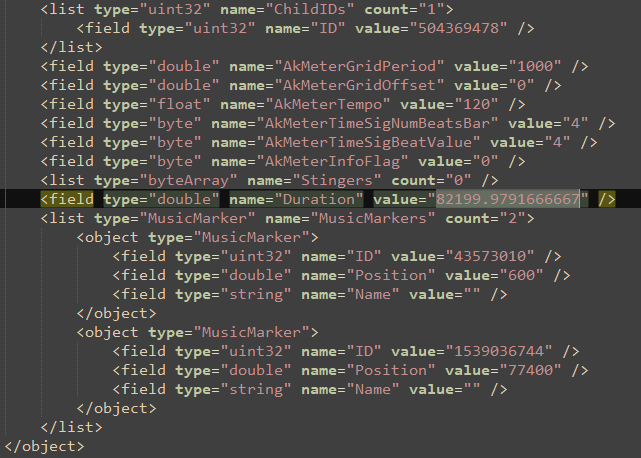
- There are 2 locations where the SourceDuration is held for each track. The duration is measured in milliseconds.
- Each can be changed to the desired amount, but for simplicity's sake, they should be identical.
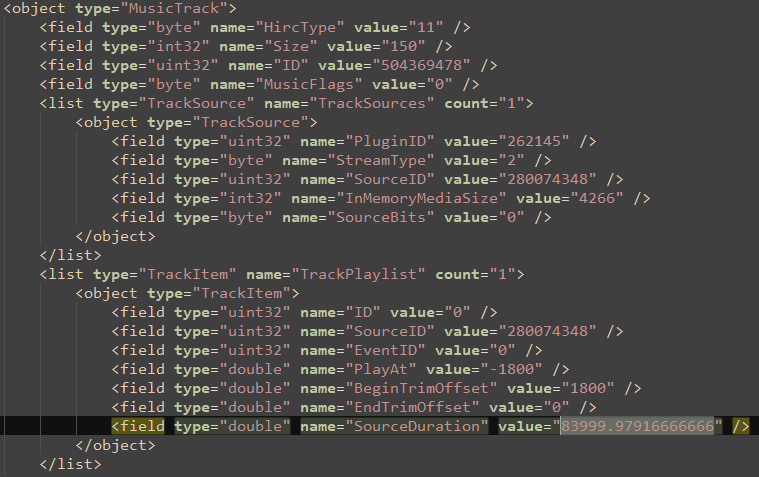
- PlayAt determines when the track actually starts. For the most part, this is unnecessary,
so it should be changed to 0. It is measured in milliseconds. - BeginTrimOffset & EndTrimOffset determine when the track plays and when it cuts off.
The negative amounts means it triggers from the end of the duration to the specified location.
It is recommended to set both of those values to 0. They are measured in milliseconds. - MusicMarkers are what determines when the current track starts and when the next track will start.
Change their positions to the appropriate amounts. They are measured in milliseconds.
ID 43573010 is when the current track starts
ID 1539036744 is when the next track starts (the current track ends)
Keep in mind that MusicMarkers do not cut off the music. The BeginTrimOffset & EndTrimOffset do that.
- AutomationItems cause the music to fade in or fade out.
For most instances, they are unnecessary and can be removed. They are measured in seconds.

Change the contents from the image above to the one below.

It might be helpful to keep AutomationItems and alter them based on the modded track.
To modify music volume, go to the MusicSequence object that contains the DirectParentID for each MusicTrack and find "Prop".

Change the field type to "float", from "uint32" and the value to an existing value of a different number.
The higher the value, the louder the track, and vice versa.

The following are valid float values for Prop (from quietest to loudest):
1056964608
1065353216
1073741824
1077936128
1080033280
1082130432
1083179008
1084227584
1086324736
1090519040
1093664768
1094713344
1098907648
1099431936
If there are no Props or it is set to 0, you can add it. Here is a sample you can copy and paste into your XML file.
                <list type="Prop" name="Properties" count="1">
                    <object type="Prop">
                        <field type="byte" name="ID" value="0" />
                        <field type="float" name="Value" value="1086324736" />
                    </object>
                </list>
Music IDs are organized by category (Ambient, Light, Heavy, etc).
They are measured alphabetically, in the same format as File Explorer if organized by name.
It is up to your best judgment to listen by ear if you want to match the length & music markers accurately.
Importing the XML file into PCK
- After changes are made to the exported XML file, save it, then go back to the last Fusion Tools window.
- Export/Import HIRC section to/from an XML file (4th option on the top bar)
- Import HIRC
- Go to the first Wwise Editor - Ready window -> File options
- Save file -> Save as the same name as the PCK file that was edited
( ex: mus.pck )
As of current time, the Eternal Mod Injector does not support PCK files.
The modded PCK file must be manually switched between the vanilla file.
Alternatively, the Eternal PCK Installer script can be used for easier .pck file replacement/restoration.