Importing Custom Models
Required Tools:
Doom Eternal Model Importer by SamPT - Download
Converts .OBJ format models into the .LWO format used by DOOM Eternal.
Blender - Download
Open-source 3D modeling software.
Blender is highly recommended, but other 3D-modeling software may also work.
How to Import Custom Models:
First, download the "Doom Eternal Model Importer" tool and run it. You will see a screen like this: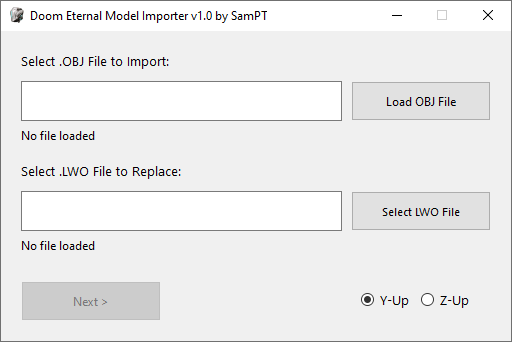
Follow these steps:
1. Click "Load OBJ File" and select the .obj file you want to import.
2. Click "Select LWO File" and select the .lwo file you want to replace - this opens a 2nd window which is similar to SAMUEL, so you can browse the game .resources.
3. Click the "next" button and you'll see a screen like this:

4. Select the material2 .decl you want to use for this model (sometimes there will only be one option). Make a note of the file you picked, because this controls which textures will be loaded for the model.
5. Click "Import Model" - this will convert your .obj file to the .lwo format. Your new .lwo model will be saved to a folder called imports, this will be in the same directory as the model importer tool:

6. Open the imports folder and look for a folder named after the model you replaced (along with some numbers). In this example, the file we replaced was called vial.lwo, so the imported model was saved in a folder called vial_id#15109803643372197552.
7. Open that folder (e.g. vial_id#15109803643372197552) and you'll see two more folders inside. One will be called streamdb and the other will be the name of a ".resources" archive, such as gameresources.

8. Copy and paste both of these folders directly into your Doom Eternal mods folder. (If distributing the mod, you should put them in a .zip file first). This folder contains everything you need to see the model replaced in the game.
9. Run EternalModInjector.bat and you should see the new model in the game.
Important: Custom models will not work with outdated versions of EternalModInjector. To avoid problems, you should add the EternalMod.json file to your completed mod, and set the minimum required version to 19. This will display a warning if someone tries to use your mod with outdated tools.
General Tips / Advice:
- Remember, the model is just the "shape" of the item. In most cases you will also need to replace textures. This isn't handled by the model importer tool. You would do this the same way you'd normally create a texture mod. See the Texture Modding guide for more information.
- If your imported model is facing sideways in the game, try changing the Y-up / Z-up setting on the first screen of Doom Eternal Model Importer.
- If the model you import is too large or small, you need to edit the model with a 3d modeling tool such as Blender. Use this tool to scale your model to the proper size before importing it into the game. (To get an idea of the correct size, you can export a "vanilla" model from the game with SAMUEL, and open that model in Blender, alongside your new one. This will give you a good size comparison).
- When exporting to .obj format from Blender, you should make sure these settings are checked (at minimum):


Note: The current version of the model importer only supports static models (.lwo format). Animated models (.md6mesh format) are not supported yet, so it is not possible to replace things like weapons or enemy models directly. However, you can attach static .lwo models to .md6mesh models to achieve a similar effect. See here: Attaching Static Models to Animated Models
See Also:
- Attaching Static Models to Animated Models
- How to use the "EternalMod.json" file
- Texture Modding guide