Doom Eternal - Legacy Modding
Information about modding Doom Eternal with the Legacy Eternal Mod Injector. ALL CONTENT IN THIS BOOK IS DEPRECATED
assetsinfo JSON
The "assetsinfo" JSON can be used to add entirely new assets to the game.
Format Overview
The assetsinfo JSON format allows for advanced control over mod injector behavior.
The most common uses of assetsinfo JSON include:
- Adding brand new textures or .decl files to the game (instead of just replacing another file)
- Controlling which of the game's .resources and .streamdb archives are loaded in a map (this allows modders to use assets that aren't normally loaded in the level/map they're working with).
Format Overview
{
	// experimental - used to add new map layers
    "layers":[
        {
            "name":""
        }
    ],

    // experimental - used to add new maps
    "maps":[
        {
            "name":""
        }
    ],

    // used for adding, removing, or re-ordering of .resources files
    "resources":[
        {
            "name":"",
            "remove":,
            "placeFirst":,
            "placeBefore":,
            "placeByName":""
        }
    ],

    // used for adding, removing, or re-ordering of game assets
    "assets":[
        {
            "name":"",
            "mapResourceType":"",
            "resourceType":"",
            "streamDbHash":,
            "version":,
            "remove":,
            "placeBefore":,
            "placeByName":"",
            "placeByType":"",
            "specialByte1":,
            "specialByte2":,
            "specialByte3":
        }
    ]
}
"Layers" array
The first part of the assetsinfo JSON format is the layers array. This can be used to add additional layers to a map, which can then be referenced via .entities.
Each item in this array contains an object that has the name property. This field is required for each entry. In there you can set the name of the layer you want to create. It's that simple.
Here is an example usage that adds three custom layers:
{
    "layers":[
        {
            "name":"game/sp/custom/my_custom_layer"
        },
        {
            "name":"game/sp/custom/my_custom_layer_2"
        },
        {
            "name":"game/sp/custom/my_custom_layer_3"
        }
    ]
}
Note: It is unclear what effect this has on gameplay, since it is possible to add new layers to the game without this step, and all existing layers in the game can already be used in any level without additional steps anyway.
"Maps" array
The second part of the assetsinfo JSON format is the maps array.
As with the layers array, each item contains an object that has the name property. In there you can set the name of the map you want to create. This feature is currently of limited use, since we can't create new maps anyway.
Here is an example usage that adds two custom maps:
{
    "maps":[
        {
            "name":"maps/game/sp/custom/my_custom_map"
        },
       	{
            "name":"maps/game/sp/custom/my_custom_map_2"
        }
    ]
}
"Resources" array
The third part of the assetsinfo JSON format is the resources array. This one is a bit more complicated, so let's begin by explaining what this is actually for.
In DOOM Eternal, each map has a list of .resources and .streamdb files that will be loaded in the map itself. With this feature, you can tell the game to load additional .resources and/or .streamdb files in maps. In other words, you can load files that aren't normally loaded, giving you access to game assets and entities that normally aren't available. You can also tell the game to stop loading .resources or .streamdb files that are loaded by default in maps.
This feature is what allows us to load things like spirits and other DLC-specific enemies into the base campaign.
Below is an example usage. This would add the e5m1_spear.resources file, as well as several .streamdb files, to a map that it is not normally loaded in. Don't worry if you don't understand this - it is explained in more detail on the Reference: "resources" array page of the guide.
{
    "resources":[
        {
            "name":"e5m1_spear.resources"
        },
        {
            "name":"gameresources_6_1.streamdb",
            "placeBefore":true,
            "placeByName":"gameresources_0_4.streamdb"
        },
        {
            "name":"gameresources_0_6.streamdb",
            "placeBefore":true,
            "placeByName":"gameresources_0_4.streamdb"
        },
        {
            "name":"gameresources_1_8.streamdb",
            "placeBefore":true,
            "placeByName":"gameresources_0_4.streamdb"
        },
        {
            "name":"gameresources_2_2.streamdb",
            "placeBefore":true,
            "placeByName":"gameresources_0_4.streamdb"
        },
        {
            "name":"gameresources_3_2.streamdb",
            "placeBefore":true,
            "placeByName":"gameresources_0_4.streamdb"
        },
        {
            "name":"gameresources_4_3.streamdb",
            "placeBefore":true,
            "placeByName":"gameresources_0_4.streamdb"
        },
        {
            "name":"gameresources_5_3.streamdb",
            "placeBefore":true,
            "placeByName":"gameresources_0_4.streamdb"
        }
    ]
}
"Assets" array
The last feature in the assetsinfo JSON is the assets array. This is the most complicated one to understand as it has a lot of fields. In most cases, you will only need to use a few of them.
The main purpose of this section is to add entirely new assets to the game. (Most mods work by replacing another asset that already exists, rather than adding something new). For more details, refer to the Reference: "assets" array page of the guide.
An example usage is below. This would add a new image file to the game:
{
    "assets":[
        {
            "resourceType":"image",
            "version":21,
            "name":"custom_textures/custom_emissive_texture.tga$bc1$streamed$mtlkind=bloommask",
            "mapResourceType":"image"
        }
    ]
}
See Also
Reference: "resources" Array
In DOOM Eternal, each map has a list of .resources and .streamdb files that will be loaded in the map itself. With this feature, you can tell the game to load other .resources and/or .streamdb files in maps. You can also tell the game to stop loading .resources or .streamdb files that are loaded by default in maps.
Structure
The basic structure of the "resources" array is below:
{
	"resources":[
		{
			"name":"",
			"remove":,
			"placeFirst":,
			"placeBefore":,
			"placeByName":""
		}
	]
}name(string) (required) - the name of the file to load, e.g."e5m1_spear.resources"remove(bool) (optional) - if set totrue, the file specified by thenameproperty will be removed from the map. Defaults tofalseif not set.placeFirst(bool) (optional) - if set totrue, the file specified by thenameproperty will be loaded with the highest priority in the map. Defaults tofalseif not set.placeBefore(bool) (optional) - if set totrue, this resource will be loaded before the resource named in theplaceByNameproperty. Defaults tofalseif not set (meaning it will be loaded after).placeByName(string) (optional) - used withplaceBeforeto control the order in which resource files are loaded. For example, setting"placeBefore":trueand"placeByName":"e1m1_intro.resources"will cause the file specified bynameto be loaded with a higher priority than e1m1_intro.resources.
If neither placeBefore nor placeByName are set, then the asset will be loaded last, with the lowest priority.
Example Usage
The most common use of this feature is to give custom map/level creators access to assets that aren't normally available in a map. For example, you can tell the game to load e5m1_spear.resources (and the required .streamdb files) within another level, such as e1m1_intro.
By doing this, a person modifying the e1m1_intro map can then freely access files/entities from e5m1_spear.resources, the same as if they existed in e1m1_intro already. This would allow you to use DLC AI such as spirits (and many other things) in e1m1_intro, where they normally can't be used.
Below is a sample .json snippet that loads the e5m1_spear.resources and .streamdb files.
{
    "resources":[
        {
            "name":"e5m1_spear.resources"
        },
        {
            "name":"gameresources_6_1.streamdb",
            "placeBefore":true,
            "placeByName":"gameresources_0_4.streamdb"
        },
        {
            "name":"gameresources_0_6.streamdb",
            "placeBefore":true,
            "placeByName":"gameresources_0_4.streamdb"
        },
        {
            "name":"gameresources_1_8.streamdb",
            "placeBefore":true,
            "placeByName":"gameresources_0_4.streamdb"
        },
        {
            "name":"gameresources_2_2.streamdb",
            "placeBefore":true,
            "placeByName":"gameresources_0_4.streamdb"
        },
        {
            "name":"gameresources_3_2.streamdb",
            "placeBefore":true,
            "placeByName":"gameresources_0_4.streamdb"
        },
        {
            "name":"gameresources_4_3.streamdb",
            "placeBefore":true,
            "placeByName":"gameresources_0_4.streamdb"
        },
        {
            "name":"gameresources_5_3.streamdb",
            "placeBefore":true,
            "placeByName":"gameresources_0_4.streamdb"
        }
    ]
}
How Do I Know Which Files to Add?
First, take a look at this spreadsheet (note: there are multiple tabs at the bottom): https://docs.google.com/spreadsheets/d/10R5fWKGyqPuCPdueqKeCYycHETSHg0QeFOCbWIQZUCY/
This spreadsheet contains the list of the default .resources and .streamdb files that are loaded in all the game's maps. So, let's say that we want to have access to all the assets in e5m1_spear.resources in e1m1_intro.resources. The first thing we need to do is find the "e5m1_spear" map name in the spreadsheet, using the "map name" column.
You will see that the map name appears multiple times. This is because the map loads multiple .resources and .streamdb files. In the "file name" column you will see the names of the files that are loaded in the map. The order of the files matters. It actually goes from bottom to up, so the files at the bottom are loaded first during the map loading process, and the files at the top are loaded last. This means that the files at the top override the others (if they share files in common). This is what we refer to as load priority.
Legacy String Modding
Extracting Strings
See Extracting Resources before proceeding. You must have gameresources.resources extracted.
A string is a sequence of characters (text) that appears literally.
Extracting Tools
BlangJsonGeneratorUI by PowerBall253 - Download
Modifies BLANG files and exports the changes as JSON.
BlangJsonGenerator by PowerBall253 - Download
Exports BLANG files into JSON, a format that can be edited with raw text editor, such as Notepad++.
BlangParser by proteh - Download
Directly modifies BLANG files with a simple GUI.
Currently, there are no released packages for BlangParser.
You will either need to find a compiled version in the 2016+ Modding Discord server
or compile it with a C# compiler.
Each BLANG file usually range from 1.5 MB to 2 MB of storage.
Finding BLANG files
- As of Update 6.66 - Rev 1.1, the highest-priority string files are located in gameresources_patch1\strings from your resource output directory.
- Copy any language BLANG file of choice and paste is somewhere safe.
This will be the string file that you will modify.
Extraction Instructions ( BlangJsonGenerator )
It is recommended to create a folder containing both "BlangJsonGenerator.exe" and the unmodified BLANG file.
- Run "BlangJsonGenerator.exe".
- Select option 1.
- Input the name of the .blang file. ( ex: english.blang )
- Input the language name. ( ex: english )
- Input the name of the output file. ( ex: english.json )
- Close the executable.
- You may now edit each string value. See Creating String Mods for more information.
The output folder must end with .json
List of Resources
| Resource Name | Information |
| english.blang | Contains strings for the English language |
| french.blang | Contains strings for the French language |
| german.blang | Contains strings for the German language |
| italian.blang | Contains strings for the Italian language |
| japanese.blang | Contains strings for the Japanese language |
| latin_spanish.blang | Contains strings for the Latin American Spanish language |
| polish.blang | Contains strings for the Polish language |
| portuguese.blang | Contains strings for the Portuguese language |
| russian.blang | Contains strings for the Russian language |
| simplified_chinese.blang | Contains strings for the Simplified Chinese language |
| spanish.blang | Contains strings for the European Spanish language |
| traditional_chinese.blang | Contains strings for the Traditional Chinese language |
Creating String Mods
See Extracting Strings before proceeding.
Make sure to backup the unmodified BLANG file.
Strings can be added to BLANG files, but you must reference them with decls files.
String Editing ( BlangJsonGeneratorUI )
- Extract the contents of BlangJsonGenerator-*.zip.
- Open BlangJsonGenerator.exe, then go to File -> Open blang file... to edit an existing BLANG file, or to File -> Open blang from .resources file to edit a BLANG file contained in a .resources file. You can also go to File -> New... to create a new BLANG JSON mod from scratch.
- You should now see something like this:
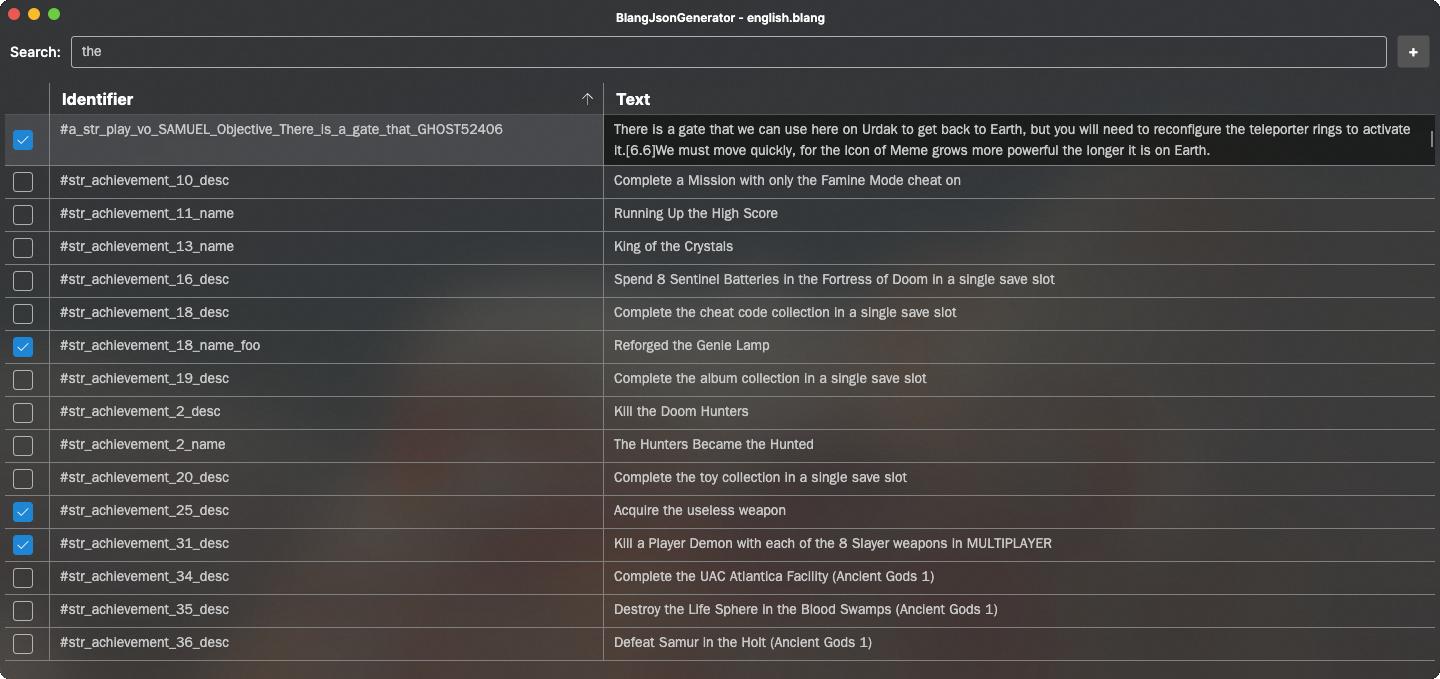
- You may edit any string Identifier or Text you wish.
- To add a string, use the + button in the top-right corner.
- After modifying the strings go to File -> Save... -> Give it the same name as its original BLANG file, with the extension changed to JSON. (ex: english.json).
- Create the following folder directories in your DOOMEternal\Mods folder:
gameresources_patch1\EternalMod\strings
- Copy your modified JSON file into the strings folder.
- Run the EternalModInjector like normal.
String Editing ( BlangJsonGenerator )
Any unused string can be deleted, so it can be compatible with other mods that affect other strings.
- Create a backup for the string JSON file.
- Open the string JSON file. ( ex: english.json )
- The strings should be formatted like this:

- If they are not, see the Extracting Strings page, under Extraction Instructions: ( BlangJsonGenerator )
- Go to the Replace tab (CTRL + F) -> Replace -> Search Mode: Check Regular expression
- Input the following and select Replace All for each:
1) 
"identifier":
"name":
The "Replace with : " box is empty for screenshot 2.
2) 
"modified": 0
The "Replace with : " box is empty for screenshot 3.
3) 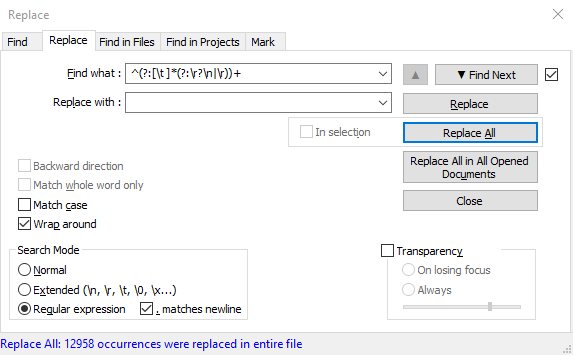
^(?:[\t ]*(?:\r?\n|\r))+
- The results should be formatted like this:

- The JSON file is now in a format that can be properly re-injected into DOOM Eternal.
Save a backup of this JSON file as well, so you would not need to go through this process again
(before the next DOOM Eternal update). - Find the strings that you wish to modify. (CTRL + F)
- After modifying the strings of your choice, delete all other unmodified strings.
- Save your modified JSON file with the same name as it was exported. ( ex: english.json )
- Create the following folder directories in your DOOMEternal\Mods folder:
gameresources_patch1\EternalMod\strings
- Copy your modified JSON file into the strings folder.
- Run the EternalModInjector like normal.
The commas "," at the end of each string name and text are unnecessary and can be deleted.
However, they do not impact the syntax in any way.
Since JSON files can be edited with raw text editors,
you can execute scripts or regular expressions to edit strings more efficiently.
String Editing ( BlangParser )
The entire BLANG file will be modified, which means it will be incompatible with other string mods.
- Extract the contents of BlangEditorv#.#.zip
- Open BlangEditor.exe you should be prompted with the following:

- You may edit any string Identifier or Text you wish.
- Upon highlighting a string line, you may select the DELETE key to remove it.
- To add a string, scroll down to the bottom of the list and add your own Identifiers and Text lines.
- After modifying the strings go to File -> Save As... -> Give it the same name as its original BLANG file.
(ex: english.blang) - Create the following folder directories in your DOOMEternal\Mods folder:
gameresources_patch1\strings
- Copy your modified BLANG file into the strings folder.
- Run the EternalModInjector like normal.
It is not recommended to delete existing string lines because DOOM Eternal will fail to recognize them.
String File Extensions
These are the string file types you will be interacting with.
.blang
String files that CANNOT be read by a raw text editor.
BLANG files CAN be re-injected into DOOM Eternal.
Example:english.blang
.json
Extracted string files that CAN be read by a raw text editor.
JSON files CANNOT be re-injected into DOOM Eternal.
Example:english.json
Legacy Audio Modding
Extracting Game Audio
It is recommended to do all of your extracting in the SAME disk drive (ex: C:\)
Extracting Tools
EternalAudioExtractor by proteh - Download
Exports WEM & OPUS audio from SND files for Windows OS.
EternalAudioExtractorLinux by PowerBall253 - Download
Exports WEM & OPUS audio from SND files for Linux OS.
Make sure you have at least 2.00 GB of storage if you plan on extracting music.
550 MB for sound effects, 50 MB for voice overs (for each language).
Extraction Instructions
Instructions are for Windows users.
- Extract the contents of EternalAudioExtractor somewhere on your machine.
- Launch either "Extract_All.bat" or "Extract_Single.bat" depending if you want to extract all sound files or from a single directory.
- Copy and paste the filepath of your DOOMEternal installation directory.
( ex: C:\Program Files (x86)\Steam\steamapps\common\DOOMEternal ) - Input the name of the .snd file you want to extract (if applicable).
- Input the name of the output directory. Make sure the directory is either empty or nonexistent.
- If you are extracting music files, press [Y] to enable automatic .ogg conversion.
- If necessary, press [Y] again to enable the extraction of unused sound files.
- If everything looks correct, press [Y] to extract its contents.
- Press [Y] to close the batch script open the output folder in a new window.
Music files must be in the OGG sound format before they can be edited.
Unused game audio (represented only by ID) cannot be referenced in-game.
List of Resources
| Resource Name | Information |
| music.snd | Contains WEM music files for Base Game & DLC1 |
| music_patch_1.snd | Contains WEM music files for DLC2 |
| music_patch_2.snd | Contains WEM music files for Horde Mode |
| sfx.snd | Contains OPUS sound effects files for Base Game |
| sfx_patch_1.snd | Contains OPUS sound effects files for DLC1 |
| sfx_patch_2.snd | Contains OPUS sound effects files for DLC2 |
| sfx_patch_3.snd | Contains OPUS sound effects files for post-DLC2 |
| vo_English(US).snd | Contains OPUS voice over files for Base Game & DLC1 |
| vo_English(US)_patch_1.snd | Contains OPUS voice over files for DLC2 and after |
| vo_French(France).snd | Contains OPUS voice over files for Base Game & DLC1 |
| vo_French(France)_patch_1.snd | Contains OPUS voice over files for DLC2 and after |
| vo_German.snd | Contains OPUS voice over files for Base Game & DLC1 |
| vo_German_patch_1.snd | Contains OPUS voice over files for DLC2 and after |
| vo_Italian.snd | Contains OPUS voice over files for Base Game & DLC1 |
| vo_Italian_patch_1.snd | Contains OPUS voice over files for DLC2 and after |
| vo_Japanese.snd | Contains OPUS voice over files for Base Game & DLC1 |
| vo_Japanese_patch_1.snd | Contains OPUS voice over files for DLC2 and after |
| vo_Polish.snd | Contains OPUS voice over files for Base Game & DLC1 |
| vo_Polish_patch_1.snd | Contains OPUS voice over files for DLC2 and after |
| vo_Portuguese(Brazil).snd | Contains OPUS voice over files for Base Game & DLC1 |
| vo_Portuguese(Brazil)_patch_1.snd | Contains OPUS voice over files for DLC2 and after |
| vo_Russian.snd | Contains OPUS voice over files for Base Game & DLC1 |
| vo_Russian_patch_1.snd | Contains OPUS voice over files for DLC2 and after |
| vo_Spanish(Mexico).snd | Contains OPUS voice over files for Base Game & DLC1 |
| vo_Spanish(Mexico)_patch_1.snd | Contains OPUS voice over files for DLC2 and after |
| vo_Spanish(Spain).snd | Contains OPUS voice over files for Base Game & DLC1 |
| vo_Spanish(Spain)_patch_1.snd | Contains OPUS voice over files for DLC2 and after |
Creating Audio Mods
Legacy - FFmpeg ( SFX & VO ) - Eternal Mod Injector
You need the FFmpeg extension for Audacity to import/export OPUS audio files - Download
- Install ffmpeg-win-#.#.#.exe -> Follow the installation instructions
- Open Audacity -> Edit -> Preferences -> Libraries
- FFmpeg Library: Locate... -> Browse... -> Find avformat-55.dll -> OK
- SFX & VO: Convert all of the audio you want to export to OPUS.
( Export Audio -> OggOpus - 64 kbps for high quality )
Be sure to export the OPUS file in either mono or stereo depending on the format of the original file.
Sometimes, Audacity will automatically find avformat-55.dll
If the exe version does not work, download the zip option and extract it into a new folder called ffmpeg-win-#.#.# (depending on the version number) and extract all its contents in there. Then attempt to locate FFmpeg.
EternalMod JSON
This .json file allows mod makers to define information about their mods, such as mod name, author(s), description and version number.
This feature is only available for zipped mods. You can not place an EternalMod JSON file at the root of your ~/Mods/ directory; it will be ignored.
How to Use:
Using the EternalMod.json file is simple:
- Create a file named "EternalMod.json"
- Place the
EternalMod.jsonfile at the root of your zipped mod, outside of the container folders. Example:~/Mods/My_Amazing_Mod.zip/EternalMod.json - Use a text editor such as Notepad++ to edit the file as needed.
Format:
This is the format of this JSON file (all fields are optional):
{
    "name":"",
    "author":"",
    "description":"",
    "version":"",
    "loadPriority":,
    "requiredVersion":
}- name: (string) The name of your mod.
- author: (string) The author(s) of the mod.
- description: (string) Description of what your mod does.
- version: (string) The version number of your mod.
- loadPriority: (integer) This field determines the load priority of your mod. The lower the number, the higher is the priority. Mods with higher priorities will be loaded last during the mod loading process. For example, a mod with load priority
-5will be loaded after another mod with priority5). If the load priority is not specified, it will be0by default. Unzipped (loose) mods will always be loaded last. - requiredVersion: (integer) The minimum mod loader version that is required to install your mod. Normally, you should set this to the current mod loader version number. In order to check the version number the current mod loader, you can run it with the '--version' option:
DEternal_loadMods.exe --version
Example File:
Here's an example of an EternalMod.json file with all the fields filled in:
{
    "name":"Enemy Randomizer",
    "author":"proteh",
    "description":"This mod randomizes every enemy encounter in the base game and the DLCs.",
    "version":"3.0",
    "loadPriority":100,
    "requiredVersion":6
}