Eternal - Audio Modding
Information for people who are looking to create Music, Sound Effect, and Voice Over mods.
General Information
Information to get started.
Extracting Game Audio
It is recommended to do all of your extracting in the SAME disk drive (ex: C:\)
Extracting Tools
AtlanResourceExtractor by FlavorfulGecko5 - Download
Exports all audio types from SND files and converts them to WAV.
Make sure you have at least 14 GB of storage if you plan on extracting MUSIC.
6 GB for SFX, 8 GB for VO (for all languages).
Extraction Instructions
- Extract the contents of AtlanResourceExtractor somewhere on your machine.
- Open the extractor_config.txt file.
- Set -> input_folder = "DOOMEternal installation directory"
ex:"C:\Program Files (x86)\Steam\steamapps\common\DOOMEternal" - Set -> output_folder = "desired output directory"
ex:"C:\Atlan_Output" - Set -> run_audio_extractor = 1
- Set -> run_soundbank_extractor = 1
- In the audio_extractor field, remove the // comments appending the audio types you wish to extract (under DOOM Eternal).
- Save the extractor_config.txt file.
- Run the AtlanResourceExtractor.exe file.
All audio files are converted to the WAV sound format to preserve quality and reduce the number of steps to convert them to WEM with Wwise.
List of Resources
| Resource Name | Information |
| music.snd | Contains WEM music files for Base Game & DLC1 |
| music_patch_1.snd | Contains WEM music files for DLC2 |
| music_patch_2.snd | Contains WEM music files for Horde Mode |
| sfx.snd | Contains OPUS sound effects files for Base Game |
| sfx_patch_1.snd | Contains OPUS sound effects files for DLC1 |
| sfx_patch_2.snd | Contains OPUS sound effects files for DLC2 |
| sfx_patch_3.snd | Contains OPUS sound effects files for post-DLC2 |
| vo_English(US).snd | Contains OPUS voice over files for Base Game & DLC1 |
| vo_English(US)_patch_1.snd | Contains OPUS voice over files for DLC2 and after |
| vo_French(France).snd | Contains OPUS voice over files for Base Game & DLC1 |
| vo_French(France)_patch_1.snd | Contains OPUS voice over files for DLC2 and after |
| vo_German.snd | Contains OPUS voice over files for Base Game & DLC1 |
| vo_German_patch_1.snd | Contains OPUS voice over files for DLC2 and after |
| vo_Italian.snd | Contains OPUS voice over files for Base Game & DLC1 |
| vo_Italian_patch_1.snd | Contains OPUS voice over files for DLC2 and after |
| vo_Japanese.snd | Contains OPUS voice over files for Base Game & DLC1 |
| vo_Japanese_patch_1.snd | Contains OPUS voice over files for DLC2 and after |
| vo_Polish.snd | Contains OPUS voice over files for Base Game & DLC1 |
| vo_Polish_patch_1.snd | Contains OPUS voice over files for DLC2 and after |
| vo_Portuguese(Brazil).snd | Contains OPUS voice over files for Base Game & DLC1 |
| vo_Portuguese(Brazil)_patch_1.snd | Contains OPUS voice over files for DLC2 and after |
| vo_Russian.snd | Contains OPUS voice over files for Base Game & DLC1 |
| vo_Russian_patch_1.snd | Contains OPUS voice over files for DLC2 and after |
| vo_Spanish(Mexico).snd | Contains OPUS voice over files for Base Game & DLC1 |
| vo_Spanish(Mexico)_patch_1.snd | Contains OPUS voice over files for DLC2 and after |
| vo_Spanish(Spain).snd | Contains OPUS voice over files for Base Game & DLC1 |
| vo_Spanish(Spain)_patch_1.snd | Contains OPUS voice over files for DLC2 and after |
Creating Audio Mods
See Extracting Game Audio before proceeding.
Instructions are for Windows users.
Audio Editing
Download an audio-editing tool of your choice, such as Audacity - Download
- Edit the audio files in your audio-editing tool.
- For replacing audio without making any adjustments to a PCK file, make sure that your edits match the start and end length of the audio track.
- SFX, VO, & MUSIC: Convert all of the audio you want to export to WAV (32 bit for high quality).
Wwise Launcher (MUSIC) - Atlan Mod Loader & idStudio
Create an audiokinetic account (use free trial) and install Audiokinetic Launcher - Download
Install Wwise Version 2022.1.18.8567 for the best experience.
- Go to Wwise Launcher -> WWISE -> Launch Wwise (64-bit) -> New (Project Launcher) -> Provide it a name -> Select None (Import assets to project) -> OK
- Close (License Manager) -> Project -> Project Settings (SHIFT + K) -> Source Settings ->
<If you are modding MUSIC>
Default Conversion Settings ... -> Vorbis / Vorbis Quality High
<If you are modding SFX or VO>
Default Conversion Settings ... -> PCM / PCM Auto Detect High
OK -> OK - Audio File Importer (SHIFT + I) -> Add Files... -> Select your WAV files -> Open -> Import
(Replace any if needed) - Project -> Convert All Audio Files... -> Check Windows (If it is not already checked) -> OK
- File Manager (SHIFT + F1) -> Right Click Project Folder Directory -> Open Containing Folder -> .cache\Windows\SFX (It is recommended to bookmark this directory)
- Be sure that the exported WEM files end with the appropriate values.
MUSIC -> _3F75BDB9
SFX -> _9D0E2A85
VO -> _10C4C929
Be sure to remove the appending values after the ID when you add the WEM files to your mod.
See also: https://wiki.eternalmods.com/books/eternal-idstudio/page/how-do-i-create-idstudio-mods
Adding Audio to your Mod
- Create a folder in your Atlan mod called audio.
- Copy your converted WEM file(s) in there and make sure they have the same ID as the audio file you want to replace. Any content prior to id# is irrelevant.
ex: samuelsbase_music_main_heavy_0_0_id#15098487.wem - Package your mod, then run the AtlanModLoader.
Audio File Extensions
These are the audio file types you will be interacting with.
.wav
Edited SFX, VO, & MUSIC files must be converted into the WAV format before they can be converted into WEM files.
WAV files SHOULD NOT be included in your mod.
Example:cultist_base_music_main_heavy_0_id#156134790.wav
.wem
The format that SFX, VO, & MUSIC files have been converted into the WEM format.
WEM files SHOULD be include in your mod.
Example:cultist_base_music_main_heavy_0_id#156134790.wem
.snd
These contain the audio files. They CANNOT be directly modified by a conventional audio editor.
Instead, tools are used to extract individual audio audio files.
Example:music.snd
.pck
These contain the audio resources. They CANNOT be directly modified by a conventional audio editor.
However, Fusion Tools can directly modify PCK files.
Example:mus.pck
PCK files modified by Fusion Tools are not supported by the Atlan Mod Loader.
which is a program that allows certain mods type to be injected.
See Creating Audio Mods for more information.
Legacy Formats
.ogg
Extracted MUSIC files from "music", "music_patch_1", & "music_patch_2" can be in this format.
OGG files SHOULD NOT be included in your mod.
Example:cultist_base_music_main_heavy_0_id#156134790.ogg
.opus
Extracted SFX & VO files from "sfx", "sfx_patch_1", "vo_English(US)", etc can be in this format.
OPUS files SHOULD NOT be included in your mod.
Example:ammo_bfg_id#373311939.opus
Advanced Information
Advanced information that covers Fusion Tools and Wwise.
Audio Length
See Extracting Game Audio & Creating Audio Mods before proceeding.
This is an Advanced Guide, you are expected to have a decent understanding of how audio (primarily music) flows in DOOM Eternal.
Backup your PCK files
Find the location of whichever PCK file you want to edit - mus, sfx, vo_english, etc.
( ex: C:\Program Files (x86)\Steam\steamapps\common\DOOMEternal\base\sound\soundbanks\pc )
Copy them over to a safe location, this will be the file that you will edit.
You may copy an additional PCK file if you want to backup the original.
Fusion Tools
Fusion Tools is an advanced sound editor. For the case of DOOM Eternal, you will use it to export/import the BNK that allows you to edit music length and their start/stop positions.
Fusion Tools - Download
Exporting the BNK file (Into the XML Format)
Extract the contents of Fusion Tools and put FusionTools.exe somewhere safe.
- Launch FusionTools.exe
- Wwise Editor
- File options (top left of the window)
- Open File
- Navigate to where you copied the PCK file that you want to edit
( You may get a warning that the PCK file does not have any WEMs, just select okay and ignore it ) - Show BNKs embedded in the file (3rd option on the top bar)
- In the new window, right click any option available -> Edit BNK (mus.pck only has 1 Embedded BNK)
- In the new Window, select: Export/Import HIRC section to/from an XML file (4th option on the top bar)
- Export HIRC (Export it somewhere safe, do not change the name of the file)
Editing Sound Properties
Proceed after your sound files are converted to the appropriate WEM format.
Save a copy of the XML file if you want to reference the unmodded piece.
Open the XML file in any XML viewer. Notepad++ works just fine - Download
- Find the sound IDs that appear at the end of each extracted sound file.
For music, you will see 2 of them, they are the SourceID. - The parent ID, or just ID, encompasses the entire track.
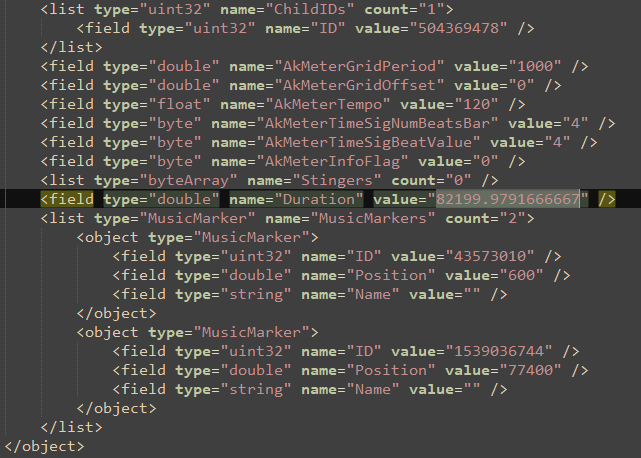
- There are 2 locations where the SourceDuration is held for each track. The duration is measured in milliseconds.
- Each can be changed to the desired amount, but for simplicity's sake, they should be identical.
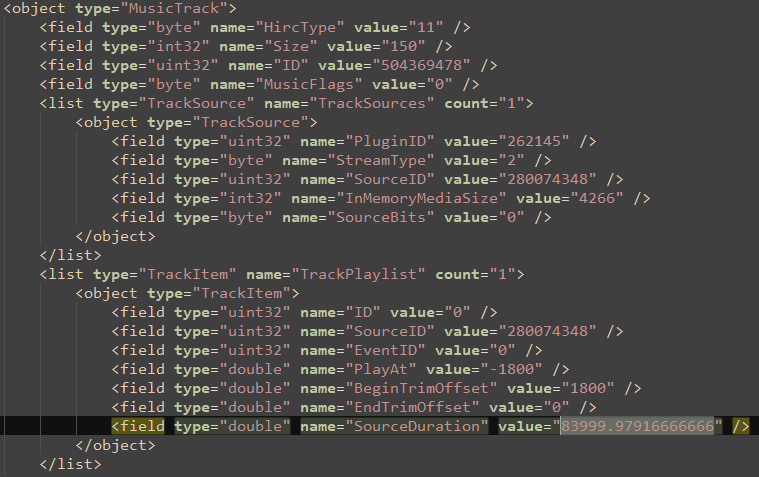
- PlayAt determines when the track actually starts. For the most part, this is unnecessary,
so it should be changed to 0. It is measured in milliseconds. - BeginTrimOffset & EndTrimOffset determine when the track plays and when it cuts off.
The negative amounts means it triggers from the end of the duration to the specified location.
It is recommended to set both of those values to 0. They are measured in milliseconds. - MusicMarkers are what determines when the current track starts and when the next track will start.
Change their positions to the appropriate amounts. They are measured in milliseconds.
ID 43573010 is when the current track starts
ID 1539036744 is when the next track starts (the current track ends)
Keep in mind that MusicMarkers do not cut off the music. The BeginTrimOffset & EndTrimOffset do that.
- AutomationItems cause the music to fade in or fade out.
For most instances, they are unnecessary and can be removed. They are measured in seconds.

Change the contents from the image above to the one below.

It might be helpful to keep AutomationItems and alter them based on the modded track.
To modify music volume, go to the MusicSequence object that contains the DirectParentID for each MusicTrack and find "Prop".

Change the field type to "float", from "uint32" and the value to an existing value of a different number.
The higher the value, the louder the track, and vice versa.

The following are valid float values for Prop (from quietest to loudest):
1056964608
1065353216
1073741824
1077936128
1080033280
1082130432
1083179008
1084227584
1086324736
1090519040
1093664768
1094713344
1098907648
1099431936
If there are no Props or it is set to 0, you can add it. Here is a sample you can copy and paste into your XML file.
                <list type="Prop" name="Properties" count="1">
                    <object type="Prop">
                        <field type="byte" name="ID" value="0" />
                        <field type="float" name="Value" value="1086324736" />
                    </object>
                </list>
Music IDs are organized by category (Ambient, Light, Heavy, etc).
They are measured alphabetically, in the same format as File Explorer if organized by name.
It is up to your best judgment to listen by ear if you want to match the length & music markers accurately.
Importing the XML file into PCK
- After changes are made to the exported XML file, save it, then go back to the last Fusion Tools window.
- Export/Import HIRC section to/from an XML file (4th option on the top bar)
- Import HIRC
- Go to the first Wwise Editor - Ready window -> File options
- Save file -> Save as the same name as the PCK file that was edited
( ex: mus.pck )
The Atlan Mod Loader does not support PCK files.
The modded PCK file must be manually switched between the vanilla file.
Alternatively, the Eternal PCK Installer script can be used for easier .pck file replacement/restoration.
See Also
HIRC Objects
See Audio Length before proceeding.
HIRC (Hierarchy) Objects
These are the components to the PCK files. They are separated by <object> in the exported XML document.
Music
Attenuation
Determines the force reduction of the overall audio. It is measured by "Curves" which can be scaled by "GraphPoints" using an "Interpolator".
MusicTrack
Actual components to each individual music track. It determines the "Duration" and "TrimOffSets" of the track.
MusicSegment
Immediately following a "MusicTrack" is its "MusicSegment". It also determines the "Duration", but it establishes "Music Markers" which actuates when the track starts and ends.
MusicSequence
Contains the list of all "MusicTracks" that will play in the sequence. It determines the the "TransitionRules" and "Destination Rules" for each Music Track.
MusicSwitchContainer
Decides when the "MusicTracks" start playing. It is structured much like a "MusicSequence".
EventAction
Directly responsible for starting and stopping the music.
Event
Immediately following an "EventAction". This is the individual event that holds the ID which will start or stop.
DOOM 2016 Music
Music from DOOM 2016 can be played in DOOM Eternal without changing any of the music files.
Entities
The idSoundEntity must be activated first. Then one of the idMusicEntity entities can be activated.
The setMusicState eventCall will not work, they must be triggered either by an idTarget_Count entity or activateTarget eventCall.
The idMusicEntity playing before activating the DOOM 2016 idSoundEntity might overlap, even persisting between levels. Deactivate it first by switching it to music_ghost_states/none.
entity {
    entityDef sound_sound_musicentity_2016 {
    inherit = "sound/soundentity";
    class = "idSoundEntity";
    expandInheritance = false;
    poolCount = 0;
    poolGranularity = 2;
    networkReplicated = false;
    disableAIPooling = false;
    edit = {
        temporarySoundEvent = true;
        soundOcclusionBypass = true;
        startEvents = {
            num = 1;
            item[0] = "Play_music_doom_2016_04_surface_1";
        }
        stopEvents = {
            num = 1;
            item[0] = "Play_music_doom_2016_04_surface_1";
        }
    }
}
}
entity {
entityDef sound_sound_musicentity_2016_heavy {
inherit = "sound/musicentity";
class = "idMusicEntity";
expandInheritance = false;
poolCount = 0;
poolGranularity = 2;
networkReplicated = false;
disableAIPooling = false;
edit = {
spawnPosition = {
x = 1;
y = 1;
z = 1;
}
initialState = "music_doom_2016_combat_state/heavy";
}
}
}entity {
entityDef sound_sound_musicentity_2016_light {
inherit = "sound/musicentity";
class = "idMusicEntity";
expandInheritance = false;
poolCount = 0;
poolGranularity = 2;
networkReplicated = false;
disableAIPooling = false;
edit = {
spawnPosition = {
x = 1;
y = 1;
z = 1;
}
initialState = "music_doom_2016_combat_state/light";
}
}
}entity {
entityDef sound_sound_musicentity_2016_ambient {
inherit = "sound/musicentity";
class = "idMusicEntity";
expandInheritance = false;
poolCount = 0;
poolGranularity = 2;
networkReplicated = false;
disableAIPooling = false;
edit = {
spawnPosition = {
x = 1;
y = 1;
z = 1;
}
initialState = "music_doom_2016_combat_state/map_start";
}
}
}entity {
entityDef sound_sound_musicentity_2016_end {
inherit = "sound/musicentity";
class = "idMusicEntity";
expandInheritance = false;
poolCount = 0;
poolGranularity = 2;
networkReplicated = false;
disableAIPooling = false;
edit = {
spawnPosition = {
x = 1;
y = 1;
z = 1;
}
initialState = "music_doom_2016_combat_state/end";
}
}
}Events
Boss & Cutscene music are not available.
Start & Stop Events
play_music_doom_2016_01_intro
play_music_doom_2016_02_resops
play_music_doom_2016_03_foundry
play_music_doom_2016_04_surface_1
play_music_doom_2016_05_argent
play_music_doom_2016_06_bka
play_music_doom_2016_07_surface_2
play_music_doom_2016_08_bfg
play_music_doom_2016_09_lazarus
play_music_doom_2016_10_bkb
play_music_doom_2016_11_bkc
play_music_doom_2016_12_polar_core
play_music_doom_2016_13_titan
play_music_main_menu_01
Music States
Only map_start, light, heavy and end will work for every Start & Stop Events
music_doom_2016_combat_state/end
music_doom_2016_combat_state/heavy
music_doom_2016_combat_state/light
music_doom_2016_combat_state/light_end
music_doom_2016_combat_state/map_start
music_doom_2016_combat_state/none
music_doom_2016_combat_state/reveal
music_doom_2016_combat_state/rune_challenge_end
music_doom_2016_combat_state/rune_challenge_start
music_doom_2016_combat_state/vulnerable