See [Extracting Resources](https://wiki.eternalmods.com/books/beginners-guide-how-to-create-mods/page/extracting-resources) before proceeding. You must have **gameresources.resources** extracted.
A [string](https://en.wikipedia.org/wiki/String_(computer_science)) is a sequence of characters (text) that appears literally.
### Extracting Tools **BlangJsonGeneratorUI by PowerBall253 - [Download](https://github.com/PowerBall253/BlangJsonGeneratorUI/releases)** Modifies BLANG files and exports the changes as JSON. **BlangJsonGenerator by PowerBall253 - [Download](https://github.com/PowerBall253/BlangJsonGenerator/releases)** Exports BLANG files into JSON, a format that can be edited with raw text editor, such as [Notepad++](https://notepad-plus-plus.org/). **BlangParser by proteh - [Download](https://github.com/dcealopez/BlangParser)** Directly modifies BLANG files with a simple GUI.Currently, there are no released packages for BlangParser. You will either need to find a compiled version in the 2016+ Modding Discord server or compile it with a C# compiler.
Each BLANG file usually range from 1.5 MB to 2 MB of storage.
### Finding BLANG files - As of Update 6.66 - Rev 1.1, the highest-priority string files are located in **gameresources\_patch1\\strings** from your resource output directory. - Copy any language BLANG file of choice and paste is somewhere safe. This will be the string file that you will modify. ### Extraction Instructions ( BlangJsonGenerator )It is **recommended** to create a folder containing both "**BlangJsonGenerator.exe**" and the unmodified **BLANG** file.
- Run "**BlangJsonGenerator.exe**". - Select option **1**. - Input the name of the **.blang** file. ( ex: **english.blang** ) - Input the language name. ( ex: **english** ) - Input the name of the output file. ( ex: **english.json** ) - Close the executable. - You may now edit each string value. See [Creating String Mods](https://wiki.eternalmods.com/books/beginners-guide-how-to-create-mods/page/creating-string-mods) for more information.The output folder **must** end with **.json**
### List of Resources| **Resource Name** | **Information** |
| english.blang | Contains strings for the English language |
| french.blang | Contains strings for the French language |
| german.blang | Contains strings for the German language |
| italian.blang | Contains strings for the Italian language |
| japanese.blang | Contains strings for the Japanese language |
| latin\_spanish.blang | Contains strings for the Latin American Spanish language |
| polish.blang | Contains strings for the Polish language |
| portuguese.blang | Contains strings for the Portuguese language |
| russian.blang | Contains strings for the Russian language |
| simplified\_chinese.blang | Contains strings for the Simplified Chinese language |
| spanish.blang | Contains strings for the European Spanish language |
| traditional\_chinese.blang | Contains strings for the Traditional Chinese language |
See [Extracting Strings](https://wiki.eternalmods.com/books/beginners-guide-how-to-create-mods/page/extracting-strings) before proceeding.
Make sure to backup the unmodified **BLANG** file.
Strings can be added to **BLANG** files, but you must reference them with **decls** files.
### String Editing ( BlangJsonGeneratorUI ) - Extract the contents of **BlangJsonGenerator-\*.zip**. - Open **BlangJsonGenerator.exe**, then go to **File** -> **Open blang** **file...** to edit an existing BLANG file, or to **File** -> **Open blang from .resources file** to edit a BLANG file contained in a .resources file. You can also go to **File** -> **New...** to create a new BLANG JSON mod from scratch. - You should now see something like this: [](https://wiki.eternalmods.com/uploads/images/gallery/2022-03/screenshot.png) - You may edit any string **Identifier** or **Text** you wish. - To add a string, use the **+** button in the top-right corner. - After modifying the strings go to **File** -> **Save...** -> Give it the same name as its original BLANG file, with the extension changed to JSON. (ex: **english.json**). - Create the following folder directories in your **DOOMEternal\\Mods** folder: **gameresources\_patch1\\EternalMod\\strings** - Copy your **modified** JSON file into the strings folder. - Run the **EternalModInjector** like normal. ### String Editing ( BlangJsonGenerator )Any unused string can be **deleted**, so it can be **compatible** with other mods that affect other strings.
- Create a backup for the string JSON file. - Open the string JSON file. ( ex: **english.json** ) - The strings should be formatted like this: [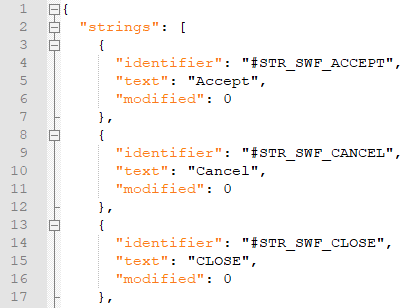](https://wiki.eternalmods.com/uploads/images/gallery/2021-09/image-1631218573399.png) - If they are not, see the [Extracting Strings](https://wiki.eternalmods.com/books/beginners-guide-how-to-create-mods/page/extracting-strings) page, under **Extraction Instructions: ( BlangJsonGenerator )** - Go to the Replace tab (CTRL + F) -> Replace -> Search Mode: Check **Regular expression** - Input the following and select **Replace All** for each: [1) 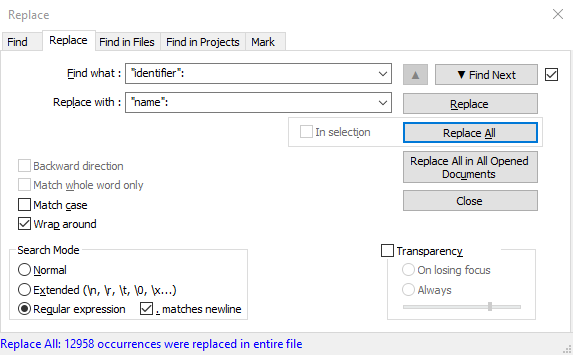](https://wiki.eternalmods.com/uploads/images/gallery/2021-09/image-1631217604007.PNG) **"identifier":** **"name":**The "**Replace with :** " box is empty for screenshot 2.
[2) ](https://wiki.eternalmods.com/uploads/images/gallery/2021-09/image-1631217614687.PNG) **"modified": 0**The "**Replace with :** " box is empty for screenshot 3.
[3) ](https://wiki.eternalmods.com/uploads/images/gallery/2021-09/image-1631217622425.PNG) **^(?:\[\\t \]\*(?:\\r?\\n|\\r))+** - The results should be formatted like this: [](https://wiki.eternalmods.com/uploads/images/gallery/2021-09/image-1631218052834.png) - The JSON file is now in a format that can be properly re-injected into DOOM Eternal. Save a backup of this JSON file as well, so you would not need to go through this process again (before the next DOOM Eternal update). - Find the strings that you wish to modify. (CTRL + F) - After modifying the strings of your choice, delete all other **unmodified** strings. - Save your **modified** JSON file with the same name as it was exported. ( ex: **english.json** ) - Create the following folder directories in your **DOOMEternal\\Mods** folder: **gameresources\_patch1\\EternalMod\\strings** - Copy your **modified** JSON file into the strings folder. - Run the **EternalModInjector** like normal.The commas "," at the end of each string name and text are unnecessary and can be deleted. However, they do not impact the syntax in any way.
Since JSON files can be edited with raw text editors, you can execute scripts or [regular expressions](https://en.wikipedia.org/wiki/Regular_expression) to edit strings more efficiently.
### String Editing ( BlangParser )The entire **BLANG** file will be modified, which means it will be **incompatible** with other string mods.
- Extract the contents of **BlangEditorv#.#.zip** - Open **BlangEditor.exe** you should be prompted with the following: [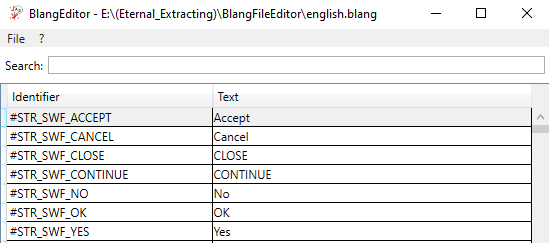](https://wiki.eternalmods.com/uploads/images/gallery/2021-09/image-1631220049230.PNG) - You may edit any string **Identifier** or **Text** you wish. - Upon highlighting a string line, you may select the **DELETE** key to remove it. - To add a string, scroll down to the bottom of the list and add your own **Identifiers** and **Text** lines. - After modifying the strings go to **File** -> **Save As...** -> Give it the same name as its original BLANG file. (ex: **english.blang**) - Create the following folder directories in your **DOOMEternal\\Mods** folder: **gameresources\_patch1\\strings** - Copy your **modified** BLANG file into the strings folder. - Run the **EternalModInjector** like normal.It is not recommended to delete existing string lines because DOOM Eternal will fail to recognize them.
# String CustomizationStrings can be customized to help specific characters stand out.
String customization applies to both **BLANG** files and **idGuiEntity\_Text** entities.
### Available ColorsStart with ^ then a character from the list below, then end with ^7 Ex: "^5sample text^7" (without quotations) This will make the text **teal**.
^a - **Gold** ^b - **Light Blue** ^c - **Green Yellow** ^d - **Orange** ^z - **White** ^0 - **Black** ^1 - **Red** ^2 - **Green** ^3 - **Yellow** ^4 - **Blue** ^5 - **Teal** ^6 - **Purple** ^7 - **White** ^8 - **Gray** ^9 - **Black**In general, helpful tips are colored **teal**, dangerous threats are colored **red**.
#### Spacing \\n - New Line \\t - Tab #### Examples ^2Green Yellow^7 -> **Green Yellow** ^1Red^7 ^aGold^7 -> **Red Gold **^1R^7^da^7^3i^7^2n^7^5b^7^bo^7^6w^7 -> **Rainbow **This is a ^5sample^7 tip -> **This is a sample tip** First line\\nSecond line -> **First line** **Second line** Sample\\tText -> **Sample Text****Up to 9 separate color identifiers can be present in one string line. Any additional colorization will cause some to be ignored.**
### **See Also** - [idGuiEntity\_Text](https://wiki.eternalmods.com/books/entities-custom-encounters/page/idguientity-text) # String File ExtensionsThese are the string file types you will be interacting with.
##### .blang String files that **CANNOT** be read by a raw text editor. BLANG files **CAN** be re-injected into DOOM Eternal. Example: **`english.blang`** ##### .json Extracted string files that **CAN** be read by a raw text editor. JSON files **CANNOT** be re-injected into DOOM Eternal. Example: **`english.json`**