
Sound Length (Advanced Guide)
See Extracting Game Audio & Creating Sound Mods before proceeding.
This is an Advanced Guide, you are expected to have a decent understanding of how sound (primarily music) flows in DOOM Eternal.
Backup your PCK files
Find the location of whichever PCK file you want to edit - mus, sfx, vo_english, etc.
( ex: C:\Program Files (x86)\Steam\steamapps\common\DOOMEternal\base\sound\soundbanks\pc )
Copy them over to a safe location, this will be the file that you will edit.
You may copy an additional PCK file if you want to backup the original.
Fusion Tools
Fusion Tools is an advance sound editor. For the case of DOOM Eternal, you will use it to export/import the BNK that allows you to edit music length and their start/stop position.
Fusion Tools - Download
Exporting the BNK file (Into the XML Format)
Extract the contents of Fusion Tools and put FusionTools.exe somewhere safe.
- Launch FusionTools.exe
- Wwise Editor
- File options (top left of the window)
- Open File
- Navigate to where you copied the PCK file that you want to edit
( You may get a warning that the PCK file does not have any WEMs, just select okay and ignore it ) - Show BNKs embedded in the file. (3rd option on the top bar)
- In the new window, right click any option available -> Edit BNK (mus.pck only has 1 Embedded BNK)
- In the new Window, select: Export/Import HIRC section to/from an XML file (4th option on the top bar)
- Export HIRC (Export it somewhere safe, do not change the name of the file)
Editing Sound Properties
Proceed after your sound files are in the proper, inject-able format.
Open the XML file in any XML view. However, Notepad++ works just fine - Download
- Find the sound IDs that appears at the end of each extracted sound file.
For music, you will see 2 of them, they are the SourceID. - There are 2 locations were the SourceDuration is held for each track.
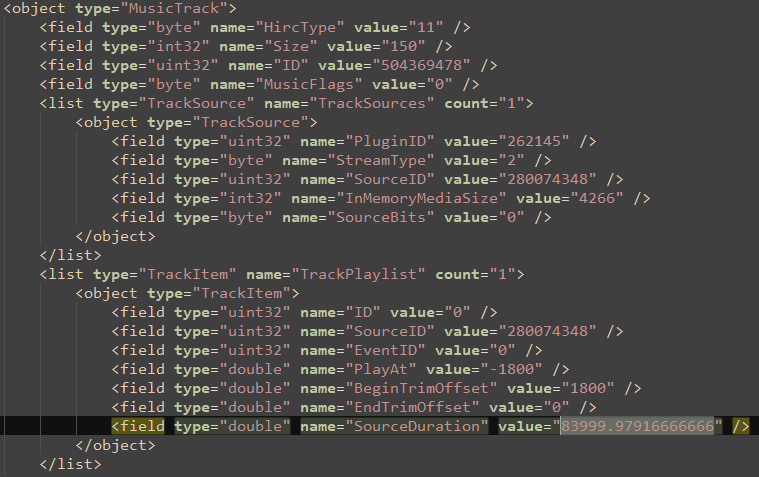

- Each will need to be changed to the desired amount.
Importing the XML file into PCK
- After changes are made to the exported XML file, go back to the latest Fusion Tools window.
- Export/Import HIRC section to/from an XML file (4th option on the top bar)
- Export HIRC
- Go to the first Wwise Editor - Ready window -> File options
- Save file -> Save as the same name as the PCK file that was edited
( ex: mus.pck )
As of current time, the Eternal Mod Injector does not support PCK files.
The modded PCK file must be manually switched between the vanilla file.
Alternatively, this script can be used for easier mus.pck file installation.